
Settings for Windows XP
Enable File Sharing
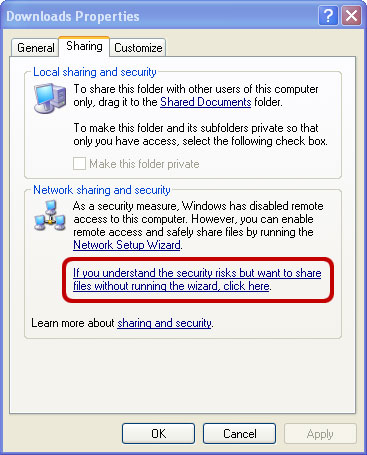
- Right-click a folder and select Sharing and Security.
- If file sharing is disabled, select the link that enables it.
Share a Folder
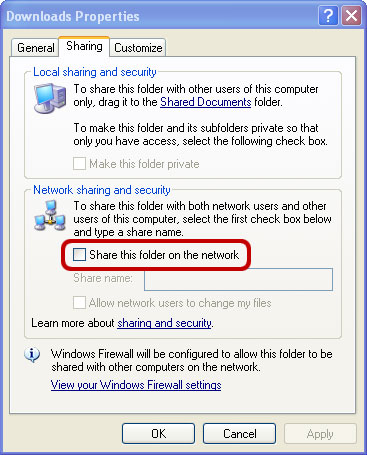
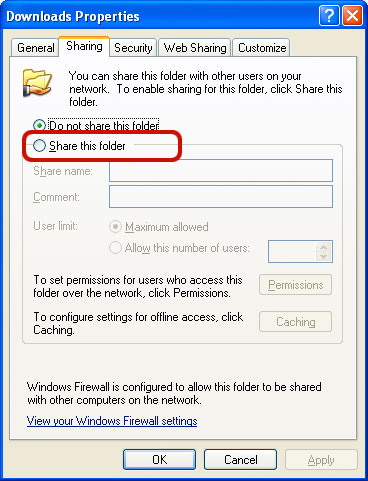
- Turn on Share this folder on the network.
- Enter a share name.
- If FE File Explorer should be able to edit and delete files, turn on Allow network users to change my files.
- Click OK.
Find Your Username and Password
Open Control Panel > User Accounts. Use this account name when connecting, and create a password if the account does not have one.
Find Your Computer Name
- Open Windows Explorer.
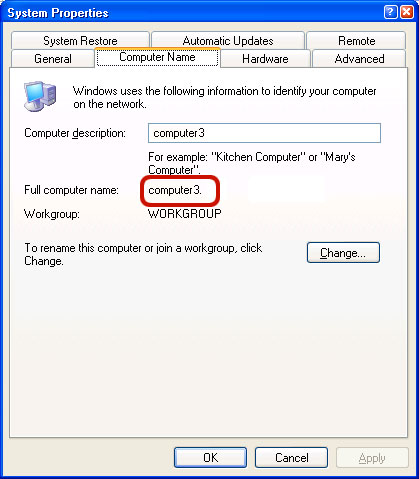
- Right-click Computer and select Properties.
- Open the Computer Name tab.
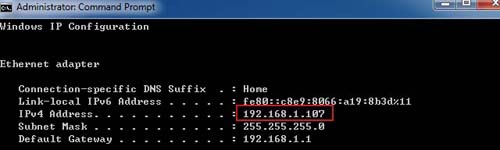
Find Your IP Address
- Open Command Prompt.
- Run
ipconfig. - Find the IP address for the network connection you are using.
Troubleshooting
If the connection times out, confirm that your iPhone or iPad and computer are on the same Wi-Fi network, and allow File and Printer Sharing through Windows Firewall.