
Backup and Restore
Back Up from an iOS Device
Windows
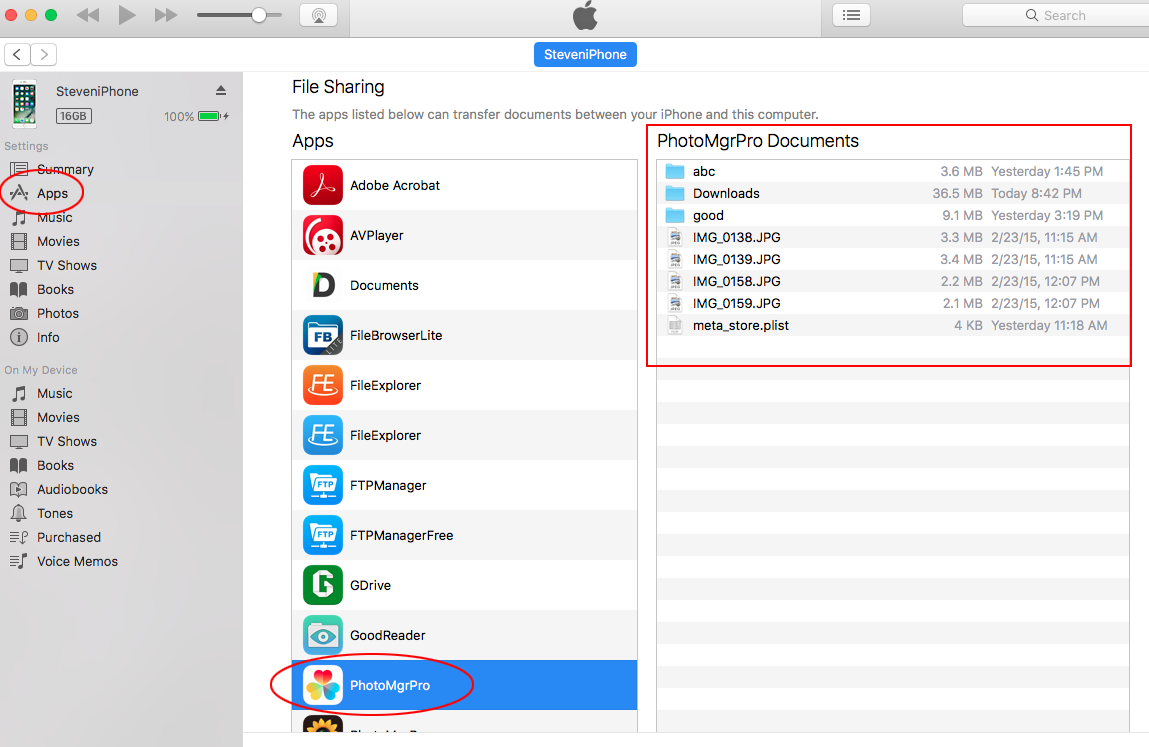
Back up data with iTunes File Sharing.
- Connect your iPhone or iPad to your PC.
- Open iTunes and select your iOS device.
- Select Apps in the sidebar.
- Scroll to the File Sharing section.
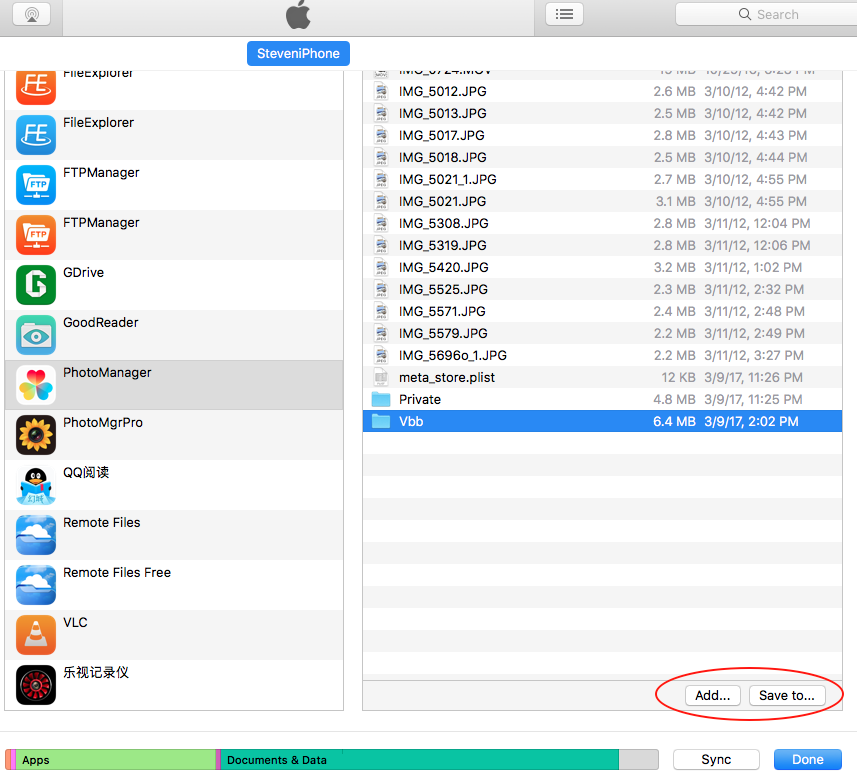
- Select the folders and files, then click Save to to save them to Windows File Explorer.
Use Save to rather than Sync.
macOS
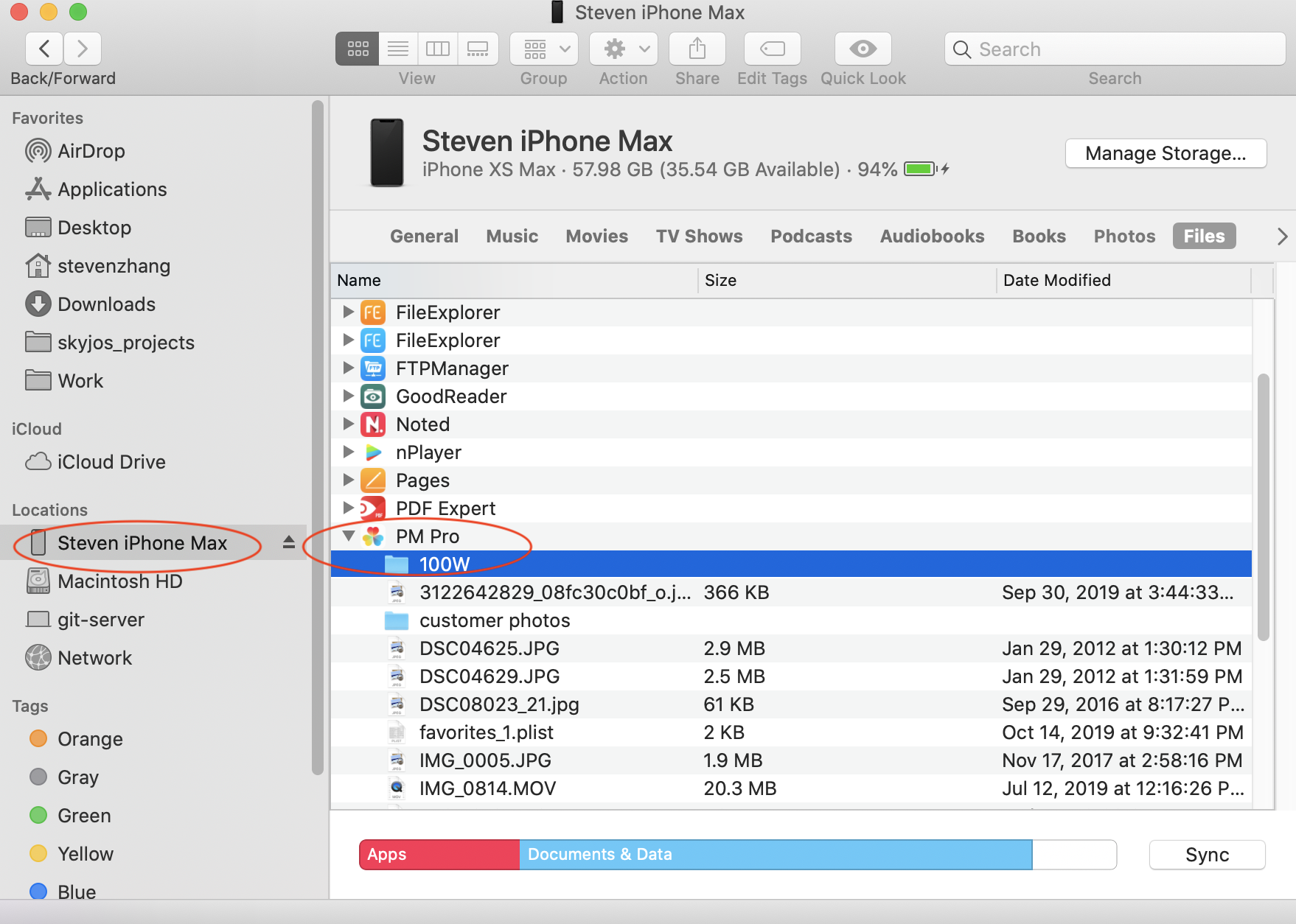
- Connect your iPhone or iPad to your Mac.
- Open Finder and select your iOS device.
- Drag folders from Photo Manager Pro to Finder.
Do not click Sync—drag photos and folders directly to the destination instead.
Restore to an iOS Device
Windows
- Connect your iPhone or iPad to your computer.
- Open iTunes and select your iOS device.
- Select Apps in the sidebar.
- Scroll to the File Sharing section.
- Drag the backup folders from your computer to the PhotoManager Documents section.
Do not click Sync—drag photos and folders directly to PhotoManager Documents instead.
macOS
- Connect your iPhone or iPad to your Mac.
- Open Finder and select your iOS device.
- Drag the backup folders from Finder to Photo Manager Pro.
Do not click Sync—drag photos and folders directly to PhotoManager Documents instead.