
Settings for Windows XP
Turn on file sharing
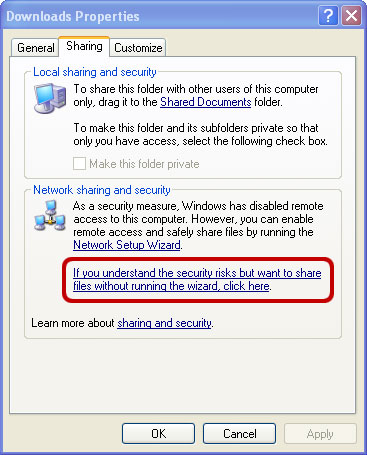
- Right-click a folder and select Sharing and Security.
- If file sharing is disabled, select the link that enables it.
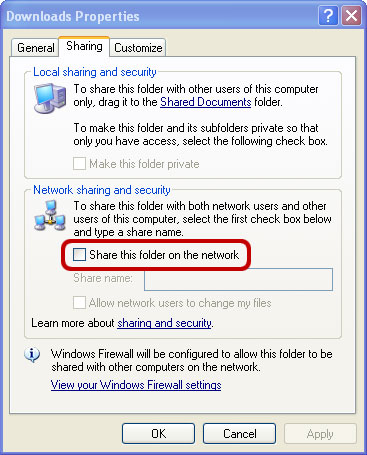
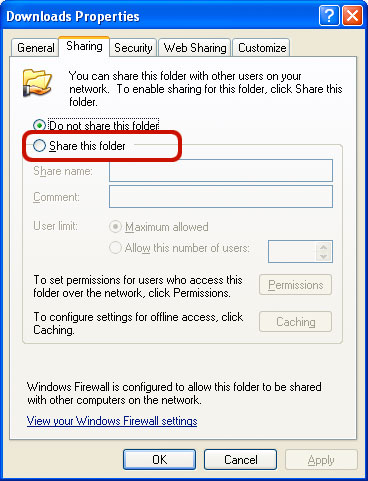
Share a folder
- Turn on Share this folder on the network.
- Enter a share name.
- If Owlfiles should be able to edit and delete files, turn on Allow network users to change my files.
- Click OK.
Find your username and set a password
Open Control Panel > User Accounts. Use this account name when connecting, and create a password if the account does not have one.
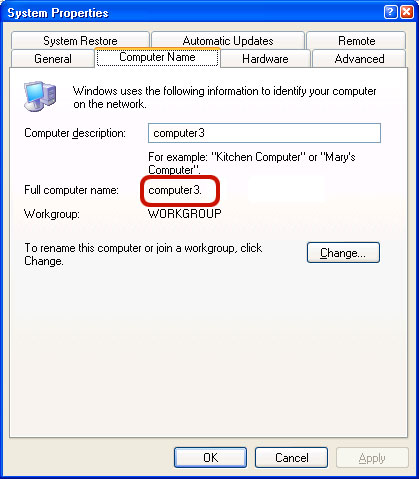
Find your computer name
- Open File Explorer.
- Right-click Computer and select Properties.
- Open the Computer Name tab.
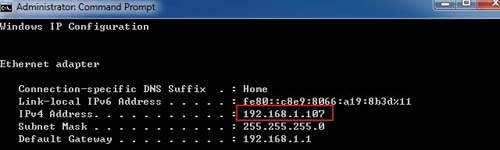
Find your IP address
- Open Command Prompt.
- Run
ipconfig. - Find the IP address for the network connection you are using.
Troubleshooting
If the connection times out, confirm that both devices are on the same network and allow File and Printer Sharing through Windows Firewall.