
Organize Notes
Categories and Folders
Organize notes into categories and folders. Categories appear in the sidebar; folders and notes appear on the right.
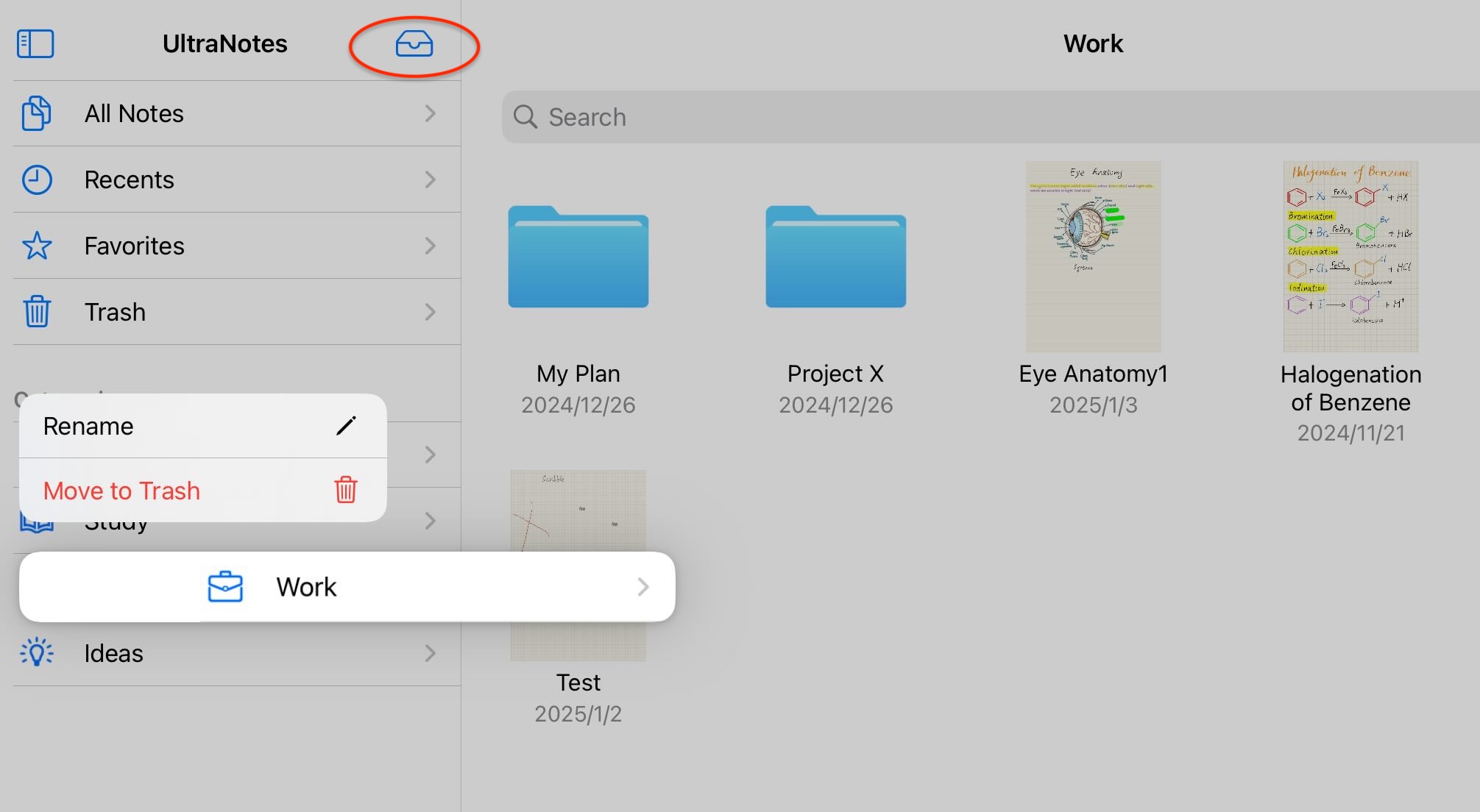
Tap the new-category button to create a category. Touch and hold a sidebar category to rename or delete it. You can also change its icon while renaming it.
Copy, Move, Rename, and Delete Notes
Touch and hold a note to open its contextual menu, then copy, move, rename, or delete it.
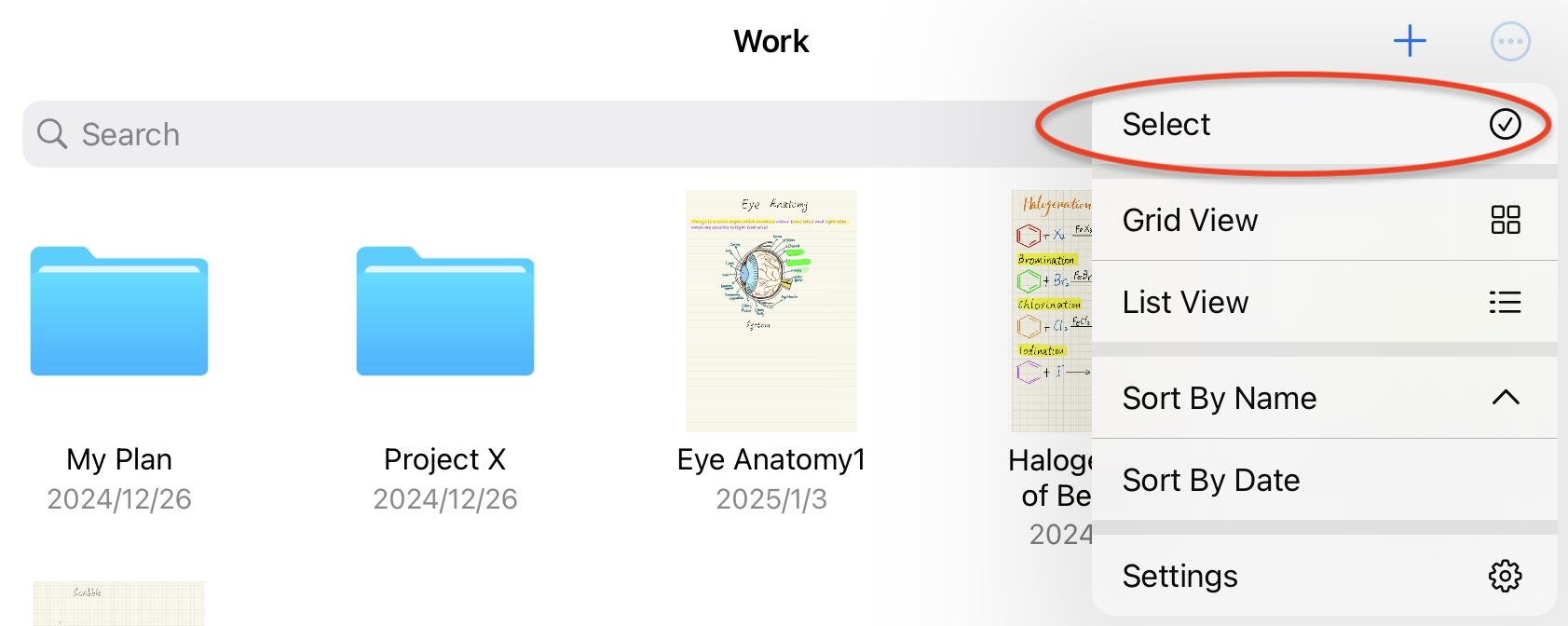
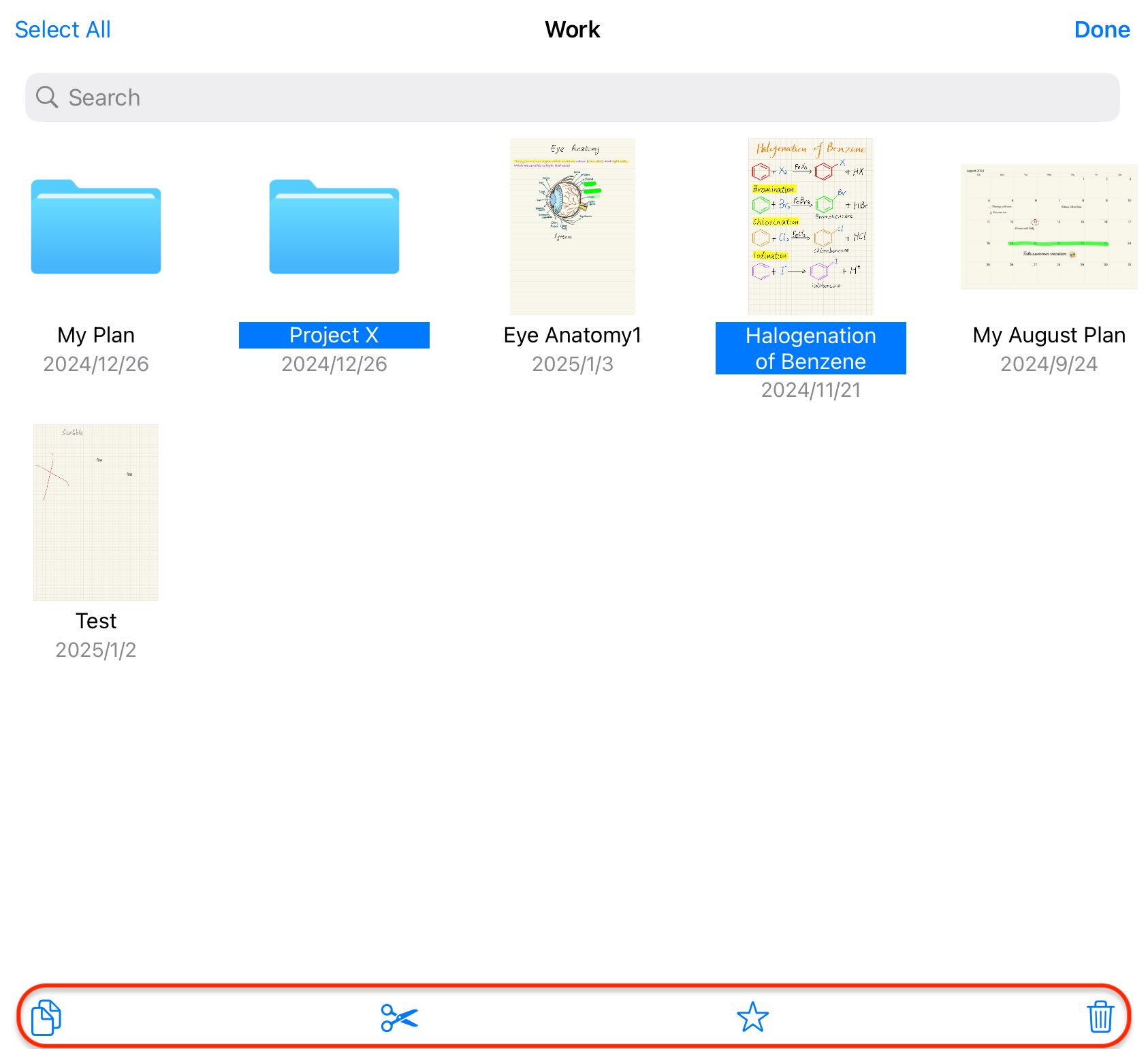
To work with several notes at once, tap Select in the upper-right corner, choose the notes, then use Copy, Move, or Delete in the bottom toolbar.
Trash
When you delete a note or folder, it is moved to Trash. To remove it permanently, delete it again from Trash.